 Marker Lab
Acrylic markers, step by step
A real painting on real paper
Marker Lab teaches you to paint with acrylic brush markers. The app shows the next stroke, you paint it on your own sheet: dark first, then mid, then light. No experience needed.
Coming soon to the App Store
For iPhone, iPad and Mac. In English, Ukrainian, Russian and Traditional Chinese.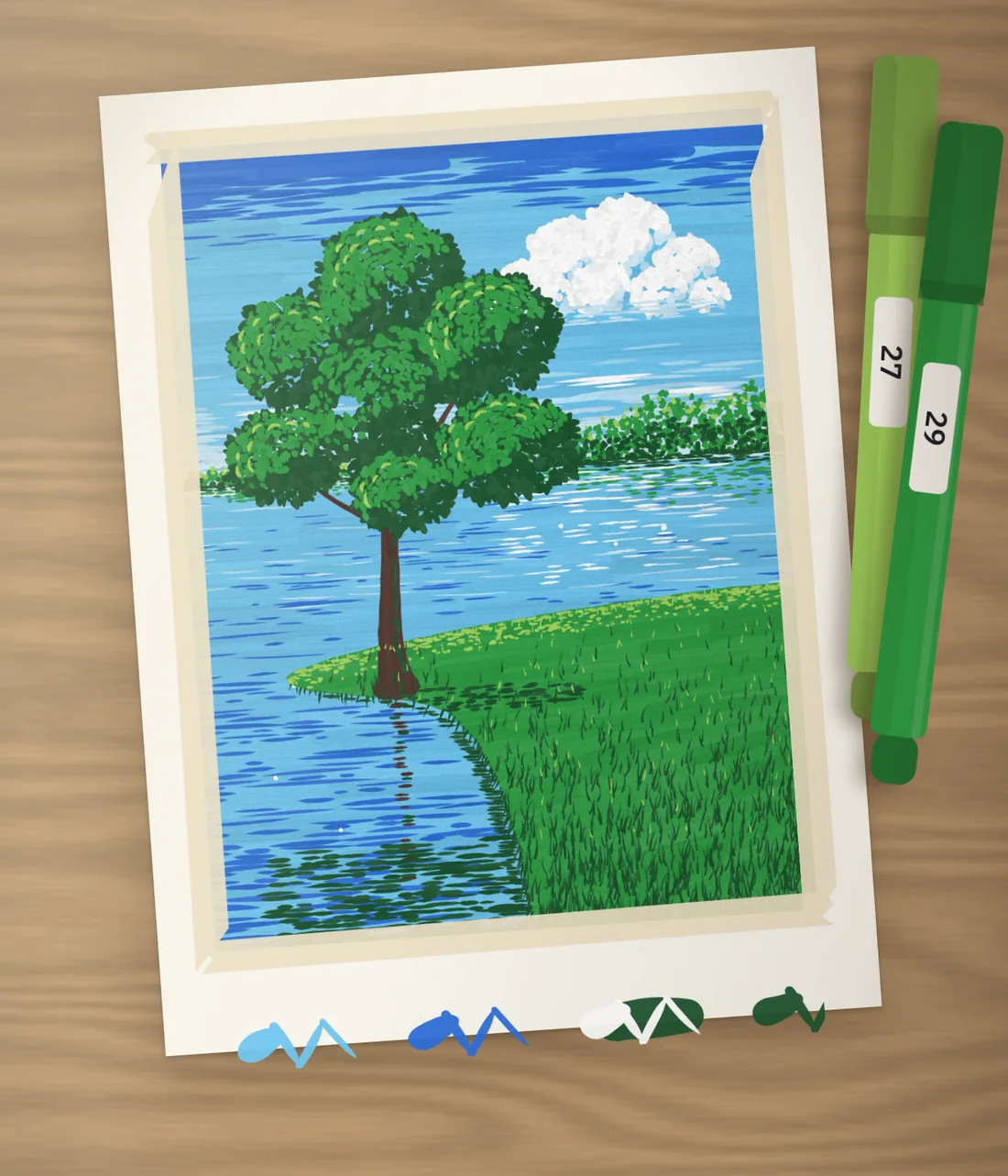
One formula for every painting
Dark, then mid, then light
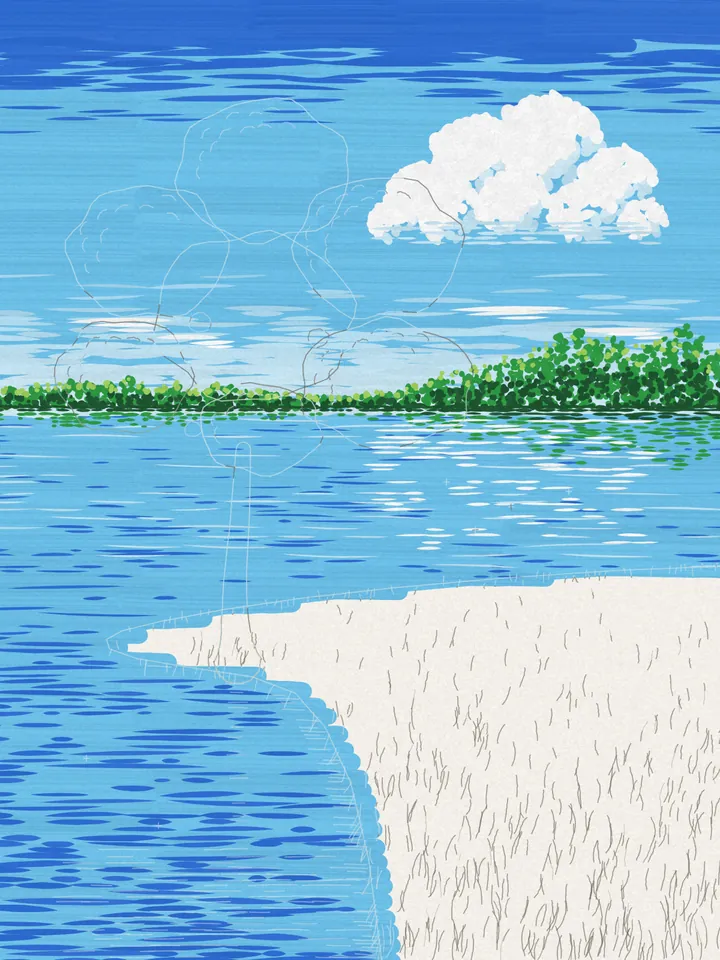
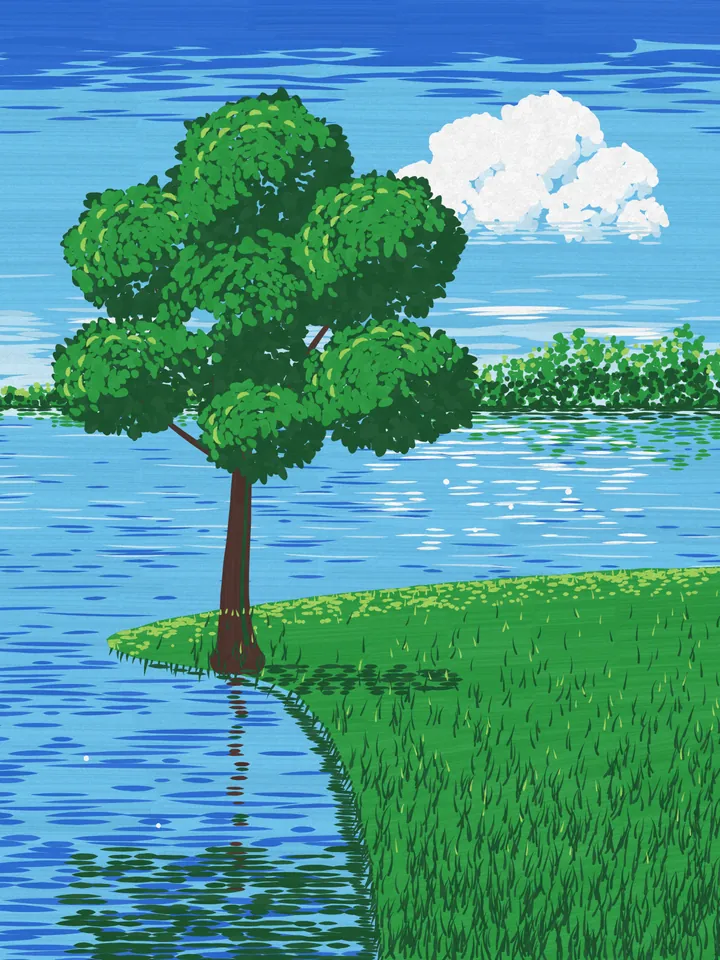
Acrylic paint is opaque, so a light colour covers a dry dark one. Every lesson is built on that: a dark base, mid tones on top, light last. Here is the crown of the tree from the lesson “Tree by the Lake”.
-
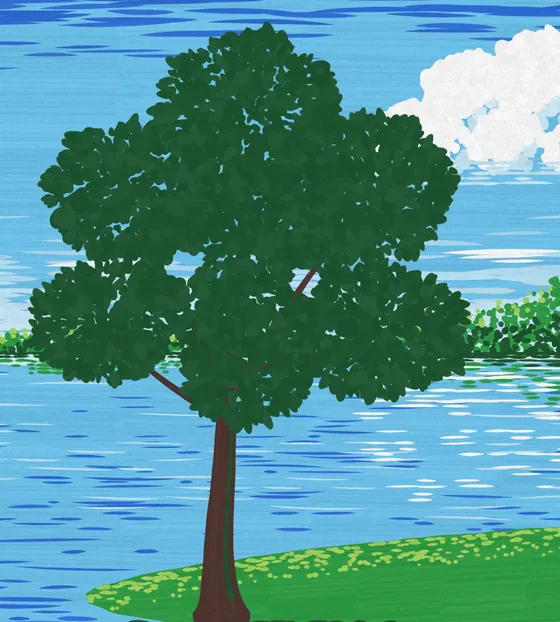 Step 5
Dark base
31 dark green paints the whole crown in groups, with gaps of sky between them.
-
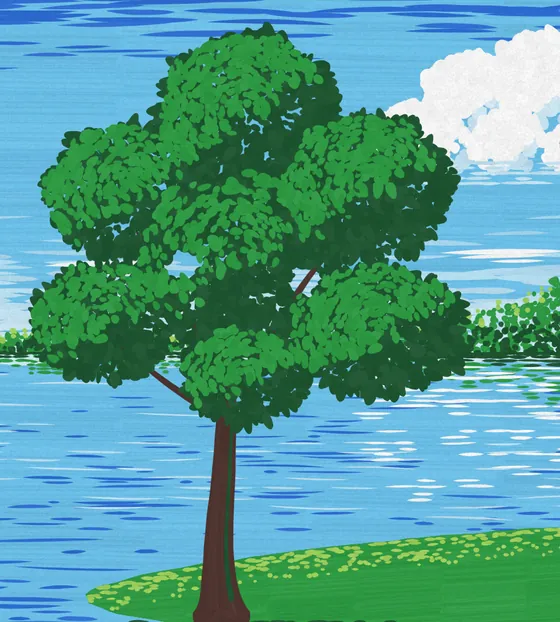 Step 6, part 1
Mid tone
29 green goes on top of every group. The bottom of each group stays dark.
-
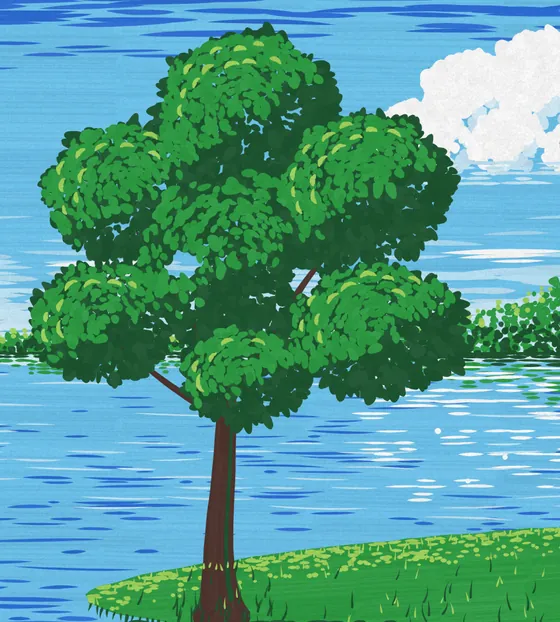 Step 6, part 2
Light
27 light green in small arcs on the tops of the groups on the left, where the sun is.
Light and shadow in every picture
Every painting is built from light, half-tone, form shadow, cast shadow and the object’s own colour, with one sun in the picture. The course teaches this inside real paintings from the first week, not as theory.
The course
From a berry twig to a boathouse on the lake
Five chapters of small finished paintings. Every lesson ends with a picture on paper, and the scenes grow as your hand gets surer. Bigger scenes are split into short sessions.
- 1Meadow
- 2Lake
- 3Flower garden
- 4Farmstead
- 5Far lands
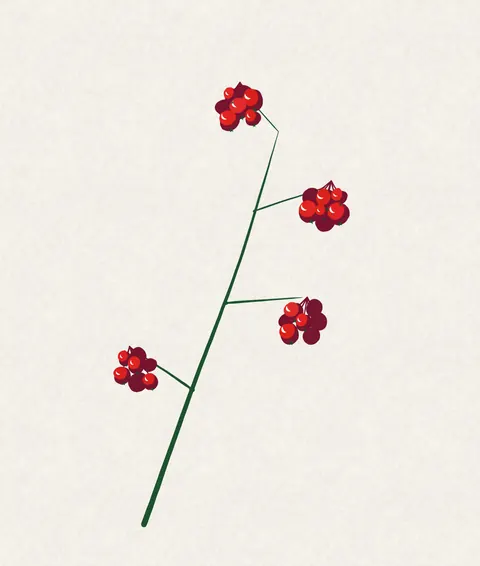
Berry TwigMeadow 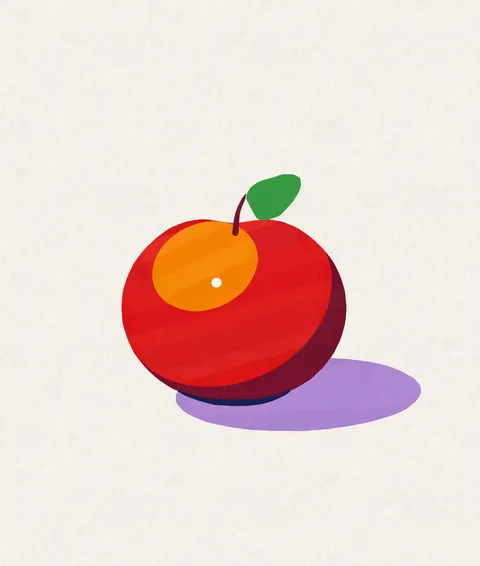
Apple in the SunMeadow 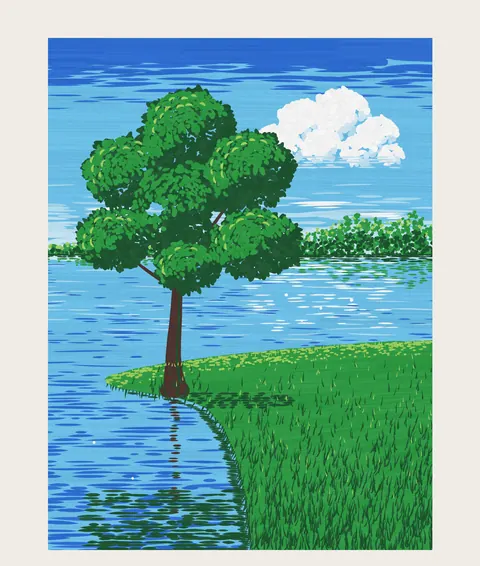
Tree by the LakeLake 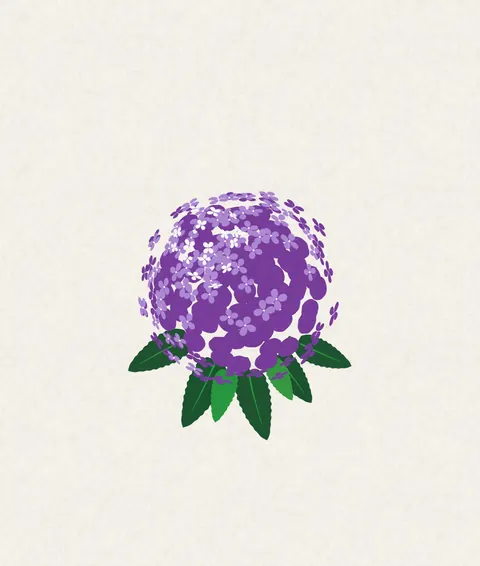
HydrangeaFlower garden 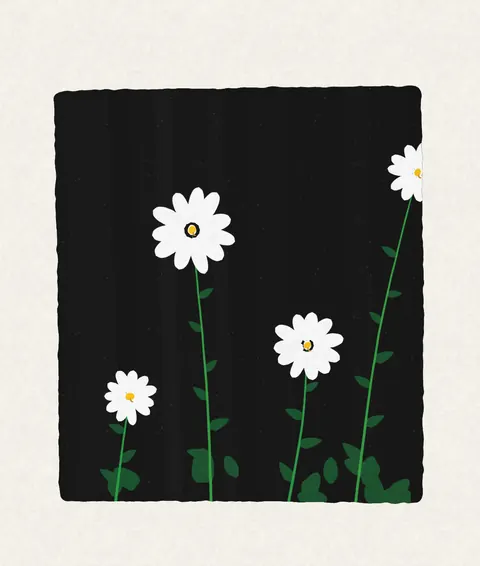
Daisies on DarkFlower garden 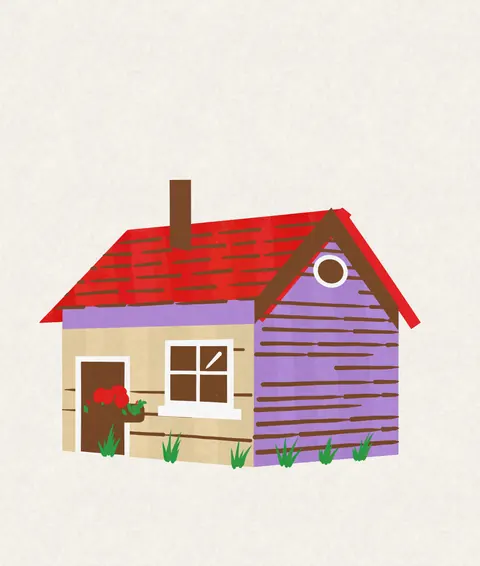
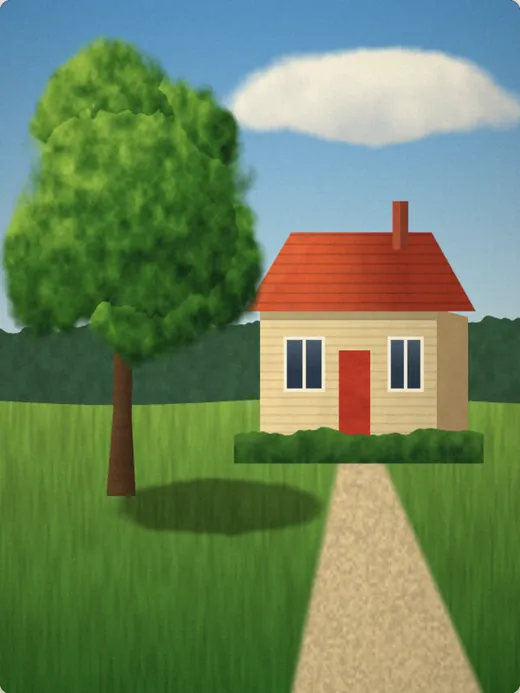
Little House with a Red RoofFarmstead 
Sailboat at SunsetFar lands 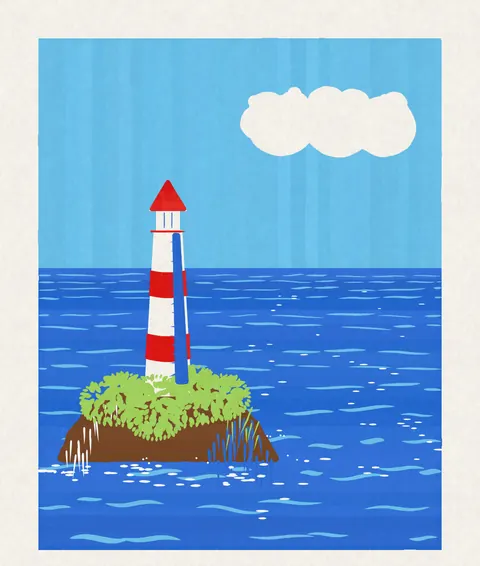
Lighthouse on an IslandFar lands 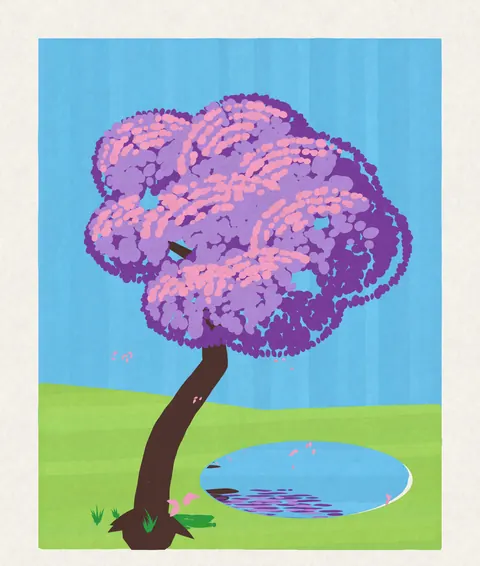
Blossoming Tree over a PondFar lands 
Winter NightFar lands 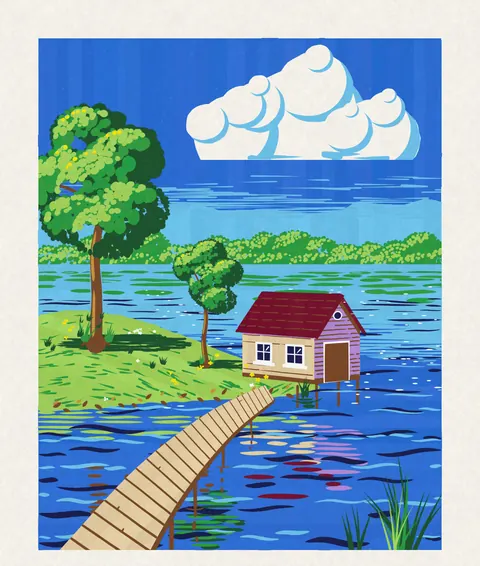
Boathouse on the LakeFar lands
These are the lessons’ target paintings, drawn by the app’s own paint engine.
How a lesson works
The screen shows, your hand paints
The paper is the point. The app pauses at every part of a step and sends you back to the table.
Watch
The painting plays stroke by stroke, so you see the order and the motion before you start.
Paint
The picture shows the next marks at real size, numbered, and names your marker by its number and colour.
Let it dry
Between layers the app waits with you. While it dries, cap the marker: a dry layer is matte, not shiny.
Photograph it
Snap the finished sheet and it goes into your sketchbook, next to the lesson it came from.
Light Lab
Move the sun, watch the shadows
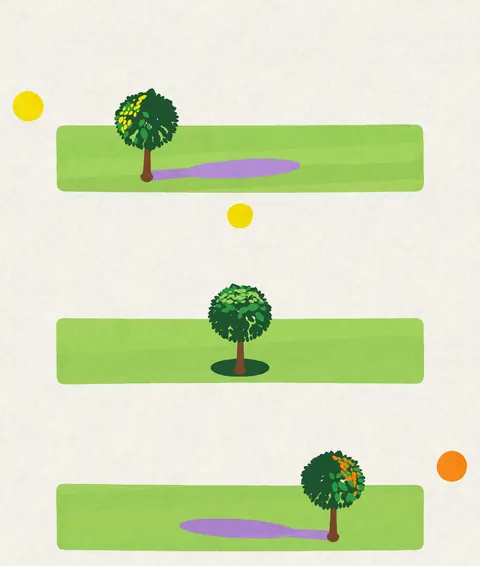
A small paper scene with a ball, a cube and a tree. Drag the sun along its arc and see the light, half-tone, form shadow and cast shadow move with it.
Every step of a lesson has a small sun badge that shows where the light comes from and opens the lab set up for that lesson. Then there is a shadow quiz. The lab works offline and sends nothing anywhere.
- Where will the shadow fall?
- Long or short?
- Where’s the sun?
- Shadow colour
- Find the shadow that’s wrong
Teacher’s Tip, optional
A second pair of eyes on your paper
Photograph your painting and get one specific piece of praise and one or two tips for the next try, with your own marker numbers.
- Only when you ask. Nothing is sent until you tap to send a photo. The first time, the app tells you who will look at it.
- Written by Claude, an AI by Anthropic. The photo of the sheet goes to our server and to Anthropic to write the tip. We don’t keep the photo, and it isn’t used to train AI.
- Parents decide. Each AI feature can be turned off in For Parents. On a child’s profile a grown-up allows it once and can require the parent PIN.
- A tip, not a grade. The teacher talks about the painting, never about people. There is no chat and nothing to type.
The crown of groups came out light: you can see the sky between them.
Light from the left27 light green in small arcs on the tops of the groups on the left. Keep the bottoms dark.
Let the layer dryLight on a wet dark layer smudges. Wait until the paint turns matte.
Next time: three tones on every group.
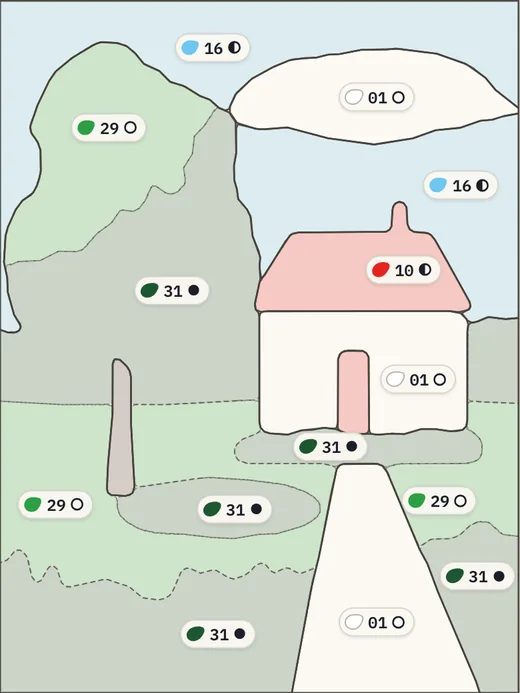
A Lesson from Your Photo
Paint the places you love
Pick a photo. The app turns it into zones in the colours of your markers, a clean outline and a painting order: background, dark, mid, light, details. All of this happens on your device and works offline.
If you want, the teacher writes the step plan from a simplified colour map. The photo itself stays on your device.
Sketchbook and printables
Everything ends on paper
Three ways to get the drawing onto your sheet, and a sketchbook that keeps every finished work by chapter.
Print the outline
A sheet at real size with the painting order and marker tests. A 5 cm ruler on the page checks the scale.
Light table
Lay thin paper on the screen and trace the outline that shines through, calibrated to real size.
Grid
Rule a light grid on your paper and copy the drawing one cell at a time.
For grown-ups and for children
Calm, private, made with parents in mind
Learning for yourself
Choose “I paint” and the course talks to you as a grown-up. No experience needed: markers, paper and a little time.
A child paints
Choose “A child paints” and an age band. A name is optional and stays on the device. A grown-up keeps the settings.
- No ads, no trackingNo advertising, no third-party analytics, no tracking across apps.
- Parent PINAn optional PIN guards purchases, links out of the app, sharing and settings. Without a PIN, a quick grown-up check does.
- No streaks, no pressurePraise goes to the work. Every painting day plants something in the garden, and if you miss a day, the garden simply waits.
- Statistics you controlUsage statistics help us improve the lessons. No names, no photos, and a switch in For Parents turns them off.
- Accounts are optionalEverything works on one device without signing in. A grown-up can sign in with Apple to sync progress.
iPhone, iPad and Mac
One course on every screen
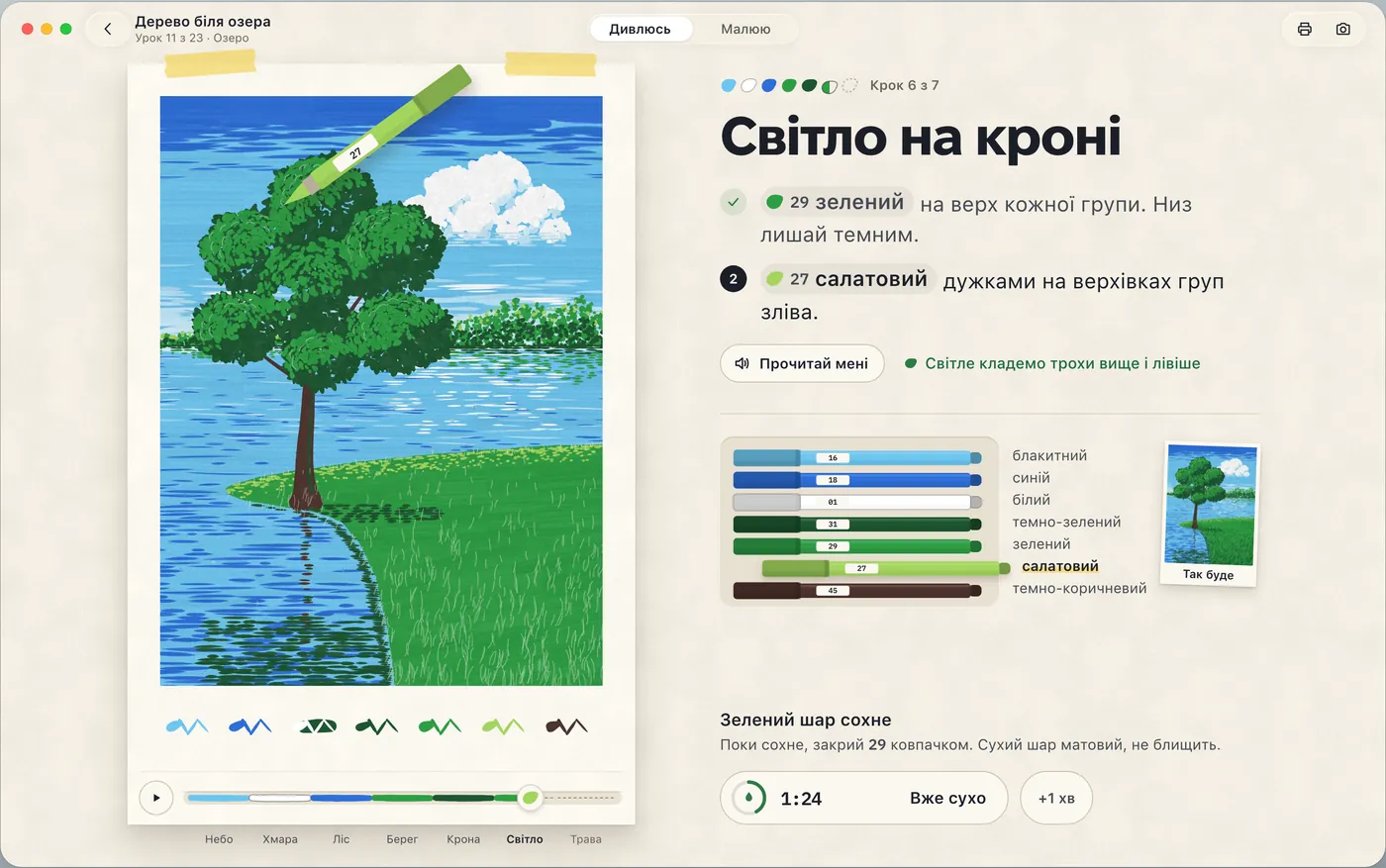
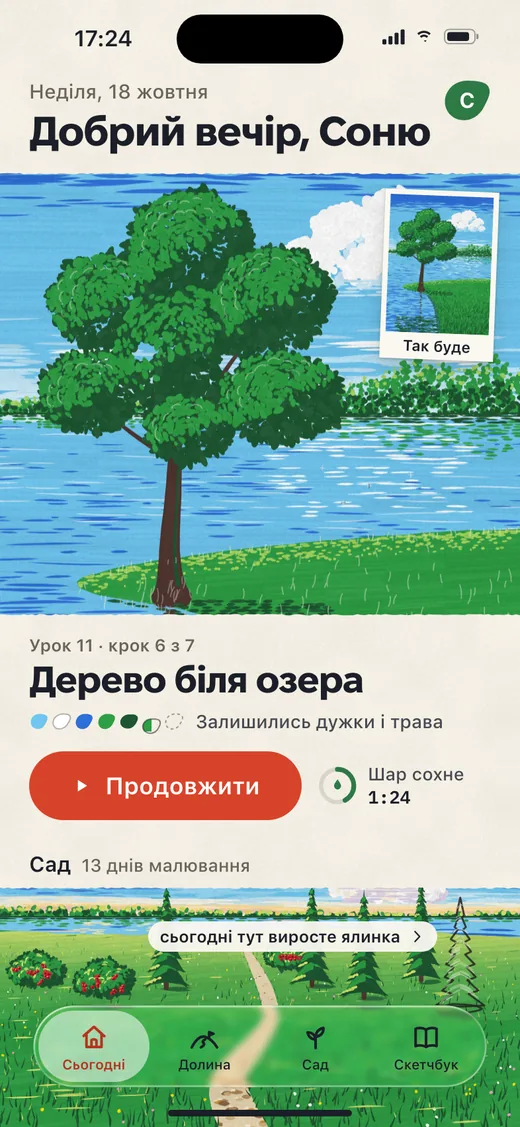
Screens shown in Ukrainian. The app also speaks English, Russian and Traditional Chinese.
Sign in with Apple, optional
The same lesson and step on your iPhone, iPad and Mac.
Works offline
Lessons, the Light Lab, printing and the photo lesson work without the internet.
Read to me
Every step can be read aloud, in all four languages.
Get your markers ready
Marker Lab is coming soon to the App Store for iPhone, iPad and Mac. Questions or ideas? Write to support@markerlab.app.
Coming soon to the App Store